Screenshot Text Editor: Change Words in a Screenshot
Use this screenshot text editor to replace wording inside a screenshot while keeping the surrounding layout in view. Upload a supported image, draw a box around the text, type the replacement, then generate a preview. It is a manual, region based workflow—not automatic OCR—and the final match depends on the source image. Choose this page when the text you need to change is already flattened into a screenshot; the main image text editor also covers broader image editing tasks.
Go to the editorEdit text in your screenshot
Upload a screenshot, select the text area you want to change, and enter the replacement. Previewing is free; generating an edited image uses credits.
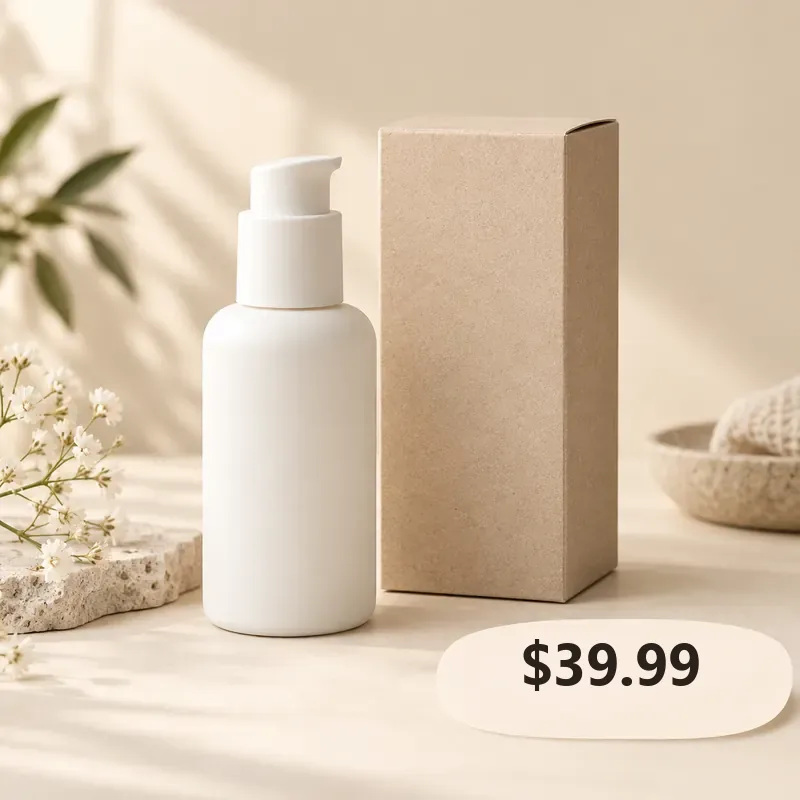
Drag over text to mark a region. Add another region for more text.
Preview mode is free. Generation uses 2 credits.
How to edit text in a screenshot
- 1Upload a JPG, PNG, or WebP screenshot up to 10 MB for preview. The sample image is only a starting point; upload your own file to edit it.
- 2Drag across the words you want to change. Adjust the selection so it includes the full text and a little surrounding background, without covering nearby labels.
- 3Type the replacement wording for the selected region. You can create more than one region, but each selected region needs its own replacement text.
- 4Check the preview before downloading. If the result misses an edge or changes too much background, refine the selection or wording and generate another version.
A practical screenshot text edit
For a product screenshot with an outdated label, select only that label and enter the new wording. Keep the selection tight enough to avoid neighboring icons or prices, but large enough to include the old letters and their background. The editor rebuilds the selected patch and places the replacement text; gradients, patterned backgrounds, tiny type, and overlapping controls can make a result less predictable. Compare the preview with the original before sharing it. This workflow is useful for mockups, personal references, and authorized updates. Do not use an edited screenshot to misrepresent evidence, a transaction, or another person’s words.
When a screenshot text editor helps
A screenshot editor is useful when the text is part of a flattened image and you do not have the original design file. Choose a narrow, clearly readable text region and keep the surrounding context intact.
- Update a heading or short label in a product or app mockup before presenting the revised concept.
- Correct a typo in a personal reference screenshot when the original source document is unavailable.
- Localize a short caption in a screenshot for a draft or internal review, then have a fluent reviewer check the result.
- Refresh a date or brief annotation in an image you own or are authorized to modify.
What happens after you select text?
The selection tells the editor which part of the screenshot may change. The image edit is generated for that region, using nearby pixels as visual context, and the replacement wording is composited into the result. This is not a document editor: text outside the selected region stays as part of the image, and the tool does not extract every word into editable layers. A clean, high resolution screenshot with a simple background is easier to review than tiny text over a photo, gradient, or detailed interface. Treat each output as a draft and inspect the whole image for alignment, artifacts, and accidental changes before you use it. For best control, compare the original and output at the same zoom level, check line breaks, and avoid selecting adjacent controls that should remain unchanged.
Limits to check before editing
Set expectations before you upload. Screenshot text can be difficult to reconstruct when letters overlap, are very small, or sit on a detailed background.
- Manual selection
- You draw the region yourself. The editor does not automatically find or select every word with OCR.
- Text and font match
- Enter the new wording; exact font, spacing, anti-aliasing, and line breaks are not guaranteed to match the original.
- Background detail
- Simple, consistent backgrounds are easier to rebuild. Busy textures, gradients, icons, and overlapping text can affect nearby pixels.
- File support
- JPG, PNG, and WebP are accepted for preview, up to 10 MB. A file that previews may still exceed processing limits.
- Removal only
- This flow is for replacing selected text. It is not a dedicated text-removal tool with a blank-area-only result.
Is the screenshot text editor free?
Uploading, drawing selections, and preview setup are free. Generating an edited image requires an account and credits: the editor estimates 2 credits for a standard edit or 4 for a complex edit before you generate. Review the estimate and current options on the pricing page; no free generation credit is included.
View credit pricingScreenshot privacy and file handling
Only upload screenshots you have permission to edit. The site privacy policy says images and generated results are scheduled for deletion after 24 hours. Avoid including passwords, payment details, private messages, or other sensitive information. Read the privacy policy for the current handling terms before uploading confidential material.
Read the privacy policyScreenshot text editor FAQ
How do I edit text in a screenshot online?
Upload a supported image, draw a selection over the text, enter its replacement, and generate a preview. Review the full output before downloading.
Does this screenshot text editor use OCR automatically?
No. You select each text region manually. It does not extract the screenshot into editable text boxes or detect every line for you.
Can it keep the same font as the screenshot?
It cannot promise an exact font or pixel-perfect spacing. Choose a legible replacement and check the preview for line breaks, alignment, and surrounding artifacts.
Can I edit multiple text areas in one screenshot?
Yes. Add separate regions for separate text areas and provide replacement wording for each one. Keep the selections distinct when nearby content should remain unchanged.
Can I remove text without replacing it?
This tool is designed to replace selected wording. It does not provide a removal-only workflow, so use a dedicated object or text remover if you need an empty background.
What screenshot formats and sizes are supported?
JPG, PNG, and WebP files up to 10 MB can be previewed. Generation may have additional image-size limits, so use a smaller export if processing cannot start.
Do I need to pay to edit screenshot text?
Preview setup is free, but generating the edited image uses credits. The editor shows an estimated 2 credits for a standard edit and 4 for a complex edit before you submit.
Related image text editing tools
For general text changes in a flattened image, use the main image text editor. Check pricing before generation, and read the privacy policy if your screenshot contains sensitive information.